

Stripe
Payments
Review supported Stripe payment data before it enters your financial model.
What it does
Connect Stripe with provider-side read access, inspect supported customers, subscriptions, charges, and balance data, and approve suggested deal or receipt mappings. RunwayCal never initiates charges or modifies your Stripe account.
What this connection does and does not do
What Stripe does
- Reads supported Stripe customers, subscriptions, charges, invoices, and balance data
- Presents supported deal and receipt mappings for review before RunwayCal records are created
- Processes supported linked events and keeps unmatched activity available for review
- Can refresh a dedicated Stripe Treasury balance through a narrow, provider-specific path
What Stripe does not do
- Create charges or modify financial records in Stripe
- Treat every Stripe record as approved planning data
- Provide a general bank feed or automatic accounting reconciliation
- Apply the same refresh behavior used by every other integration
Integration details
| Detail | Stripe |
|---|---|
| Connection | Restricted or secret API key |
| Direction | Stripe → RunwayCal |
| Records added to RunwayCal | Review and approval required |
| Changes made in Stripe | None |
| Availability | Pro and above |
Prerequisites
- A Stripe account (test or live mode)
- A restricted API key from your Stripe Dashboard (recommended over a secret key for security)
Step-by-step setup
Create a restricted key in Stripe
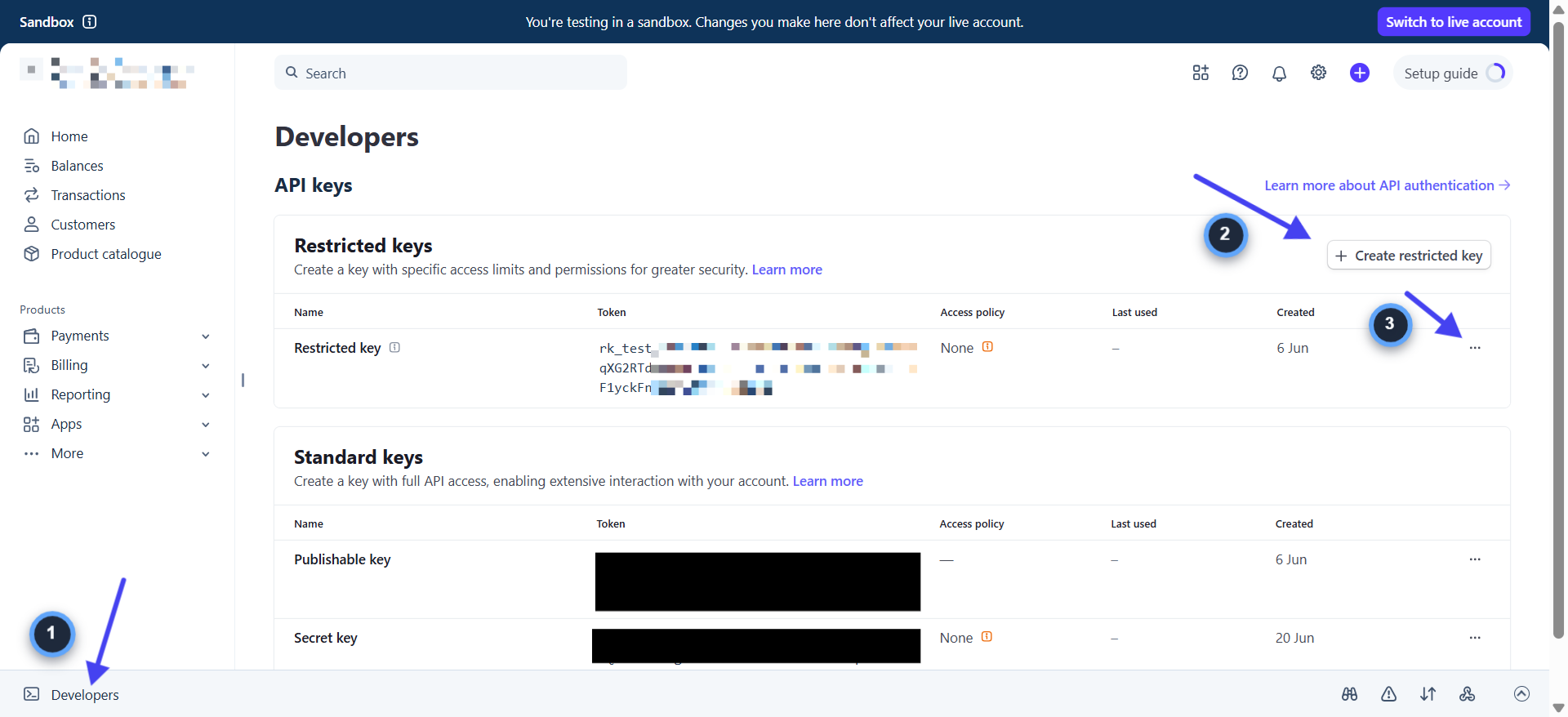
- 1.Log into your Stripe Dashboard at dashboard.stripe.com
- 2.Click "Developers" in the bottom-left sidebar
- 3.Click "API Keys" in the top navigation
- 4.Under "Restricted keys," click "+ Create restricted key"
- 5.You will see three options. Select "Providing this key to a third-party application"
- 6.Enter Name: "RunwayCal"
- 7.Enter URL: https://app.runwaycal.com
- 8.Check "Customise permissions for this key"
- 9.Set these resources to "Read" permission: Balance, Charges, Customers, Invoices, Subscriptions
- 10.Leave all other permissions as "None"
- 11.Click "Create restricted key"
- 12.Copy the key immediately (starts with rk_test_ or rk_live_). Stripe only shows it once.
Paste the key in RunwayCal
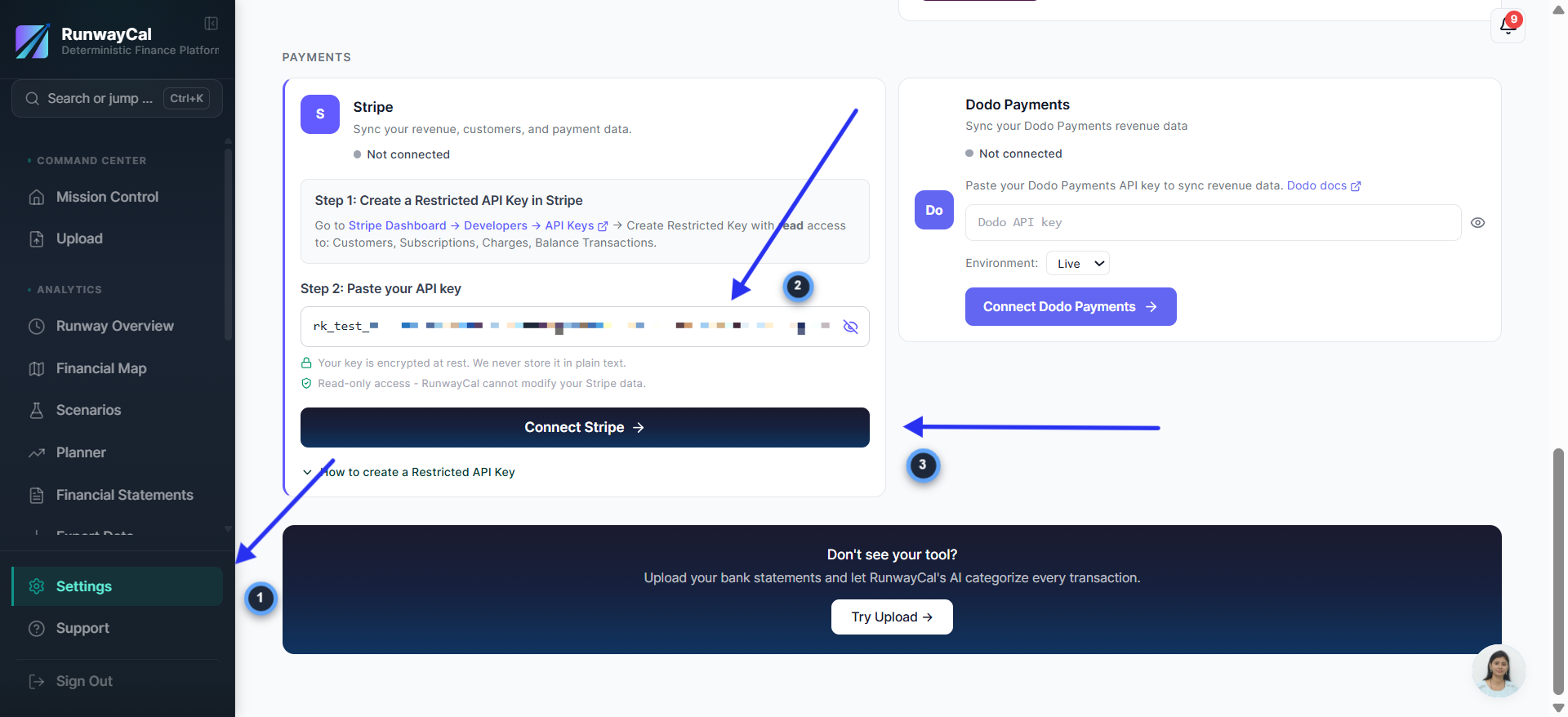
- 1.In RunwayCal, go to Settings (left sidebar) then Integrations tab
- 2.Find the Stripe card under "Revenue & CRM"
- 3.Paste your restricted key into the API key field
- 4.Click "Connect Stripe"
Verify connection
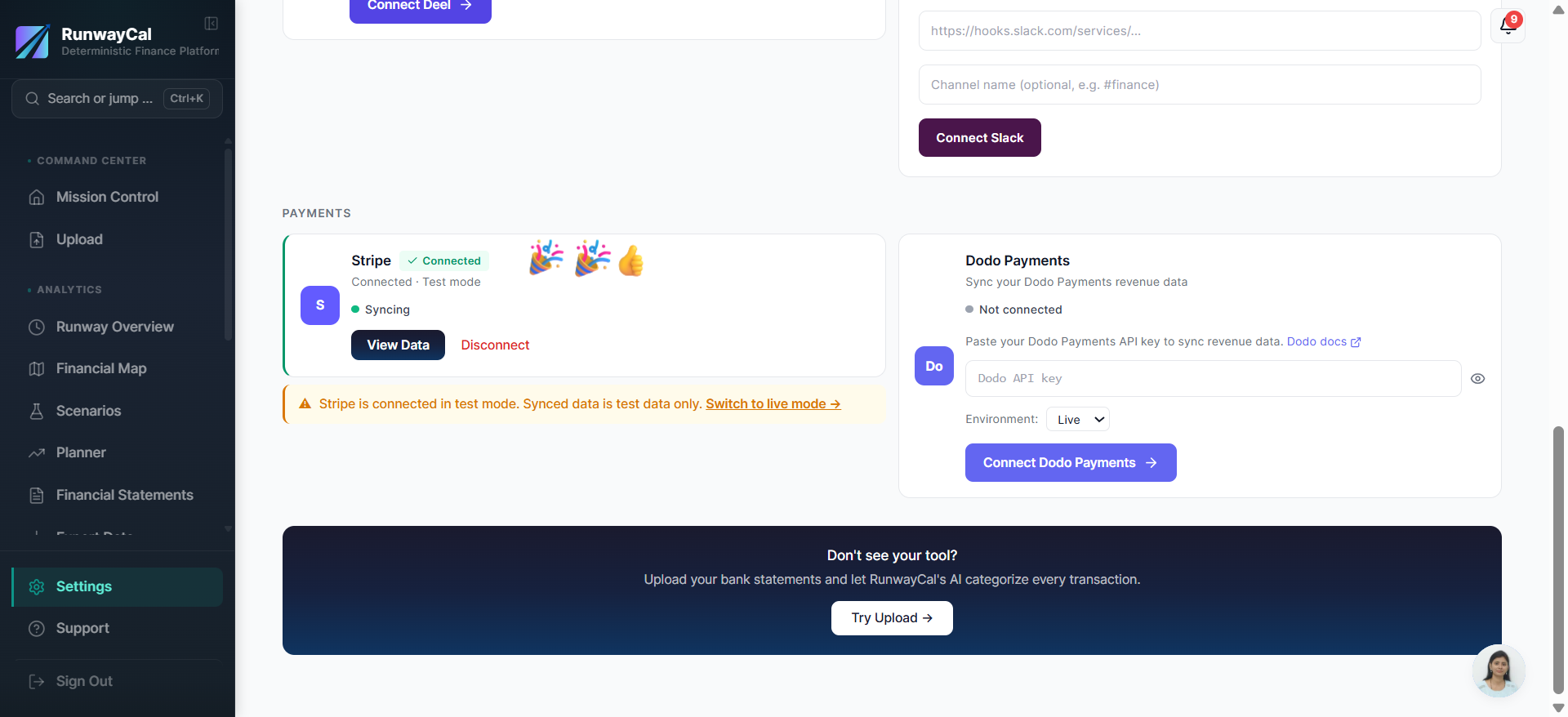
- 1.You should see a green "Connected" badge on the Stripe card. If you're using a test key, a yellow banner will appear: "Stripe is connected in test mode. Synced data is test data only."
What you'll see after connecting
A green "Connected" badge appears on the Stripe card. Test keys show a yellow test mode banner. Use "View Data" to inspect supported records and approve suggested mappings. A dedicated Stripe Treasury balance is a separate, narrow refresh behavior.
Available connection data
| Data | Description |
|---|---|
| Charges | Payment amounts, dates, customer info |
| Subscriptions | Active subscriptions, MRR data |
| Invoices | Invoice amounts and payment status |
| Customers | Customer names mapped to deals |
Troubleshooting
Invalid API key
Make sure you copied the full key including the rk_ prefix. Don't use a publishable key (starts with pk_).
Connection failed
Check that the key has at least Balance read permission. RunwayCal verifies the key by checking your account balance.
Test vs live data
If you see a yellow banner about test mode, you're using a test key. Switch to a live restricted key when ready for real data.