

Slack
Notifications
Get RunwayCal alerts in the Slack channel your team already uses.
What it does
Connect a Slack channel to receive supported RunwayCal notifications without opening the app. Slack is a notification destination. It does not read or change your financial data.
What this connection does and does not do
What Slack does
- Sends supported RunwayCal alerts and digests to a Slack channel you choose
- Uses a Slack incoming webhook
- Lets your team see configured notifications where they already work
What Slack does not do
- It does not read your Slack messages
- It does not import financial data from Slack
- It does not let Slack change financial data in RunwayCal
- It is not a two-way financial integration
Integration details
| Detail | Slack |
|---|---|
| Category | Notifications |
| Connection | Incoming webhook |
| Direction | RunwayCal → Slack |
| Financial data read from Slack | None |
| Can Slack change RunwayCal financial data? | No |
| Availability | Pro and above |
Prerequisites
- A Slack workspace where you have permission to add apps
- A channel where you want to receive alerts (e.g., #finance, #platform-alerts)
Step-by-step setup
Create an Incoming Webhook
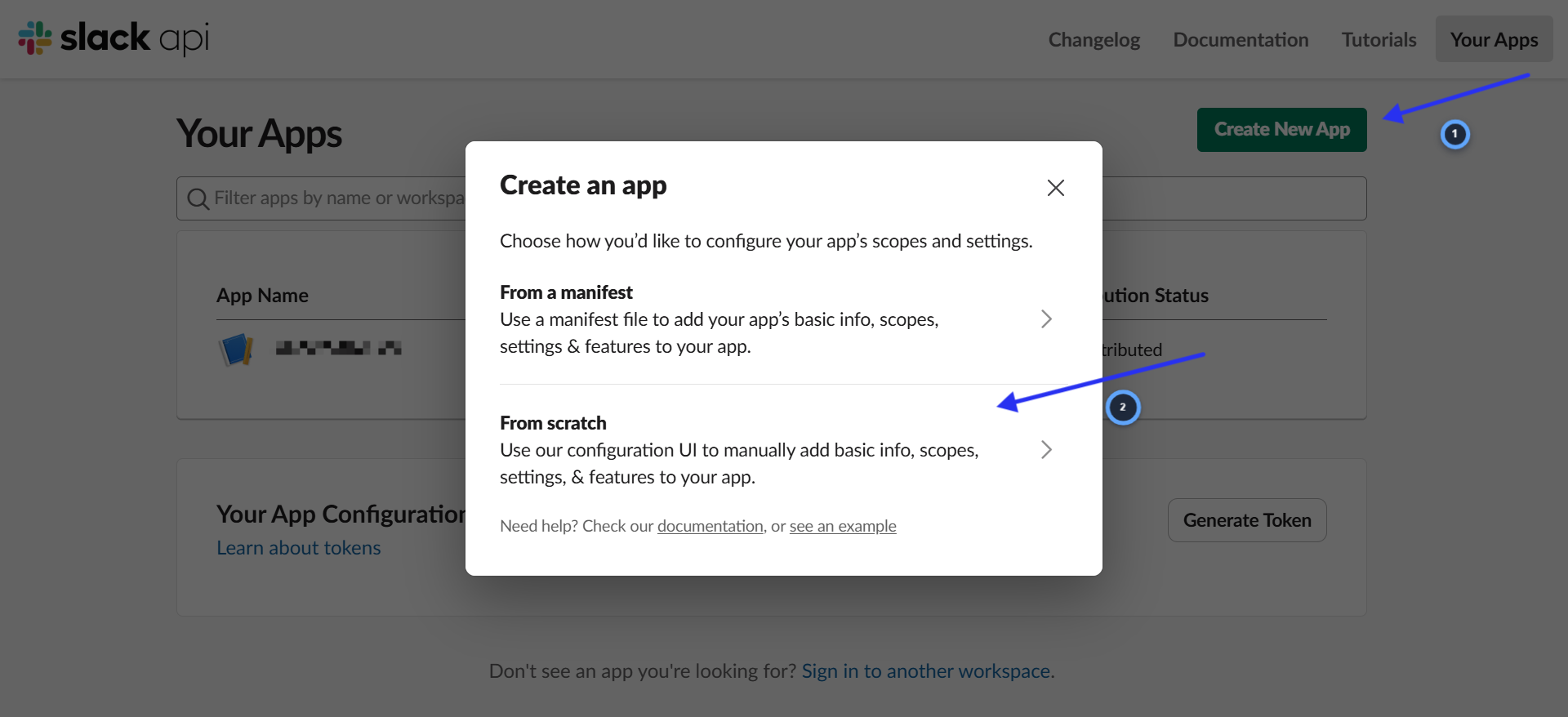
- 1.Go to api.slack.com/apps in your browser
- 2.Click "Create New App"
- 3.Select "From scratch"
Choose the Slack workspace
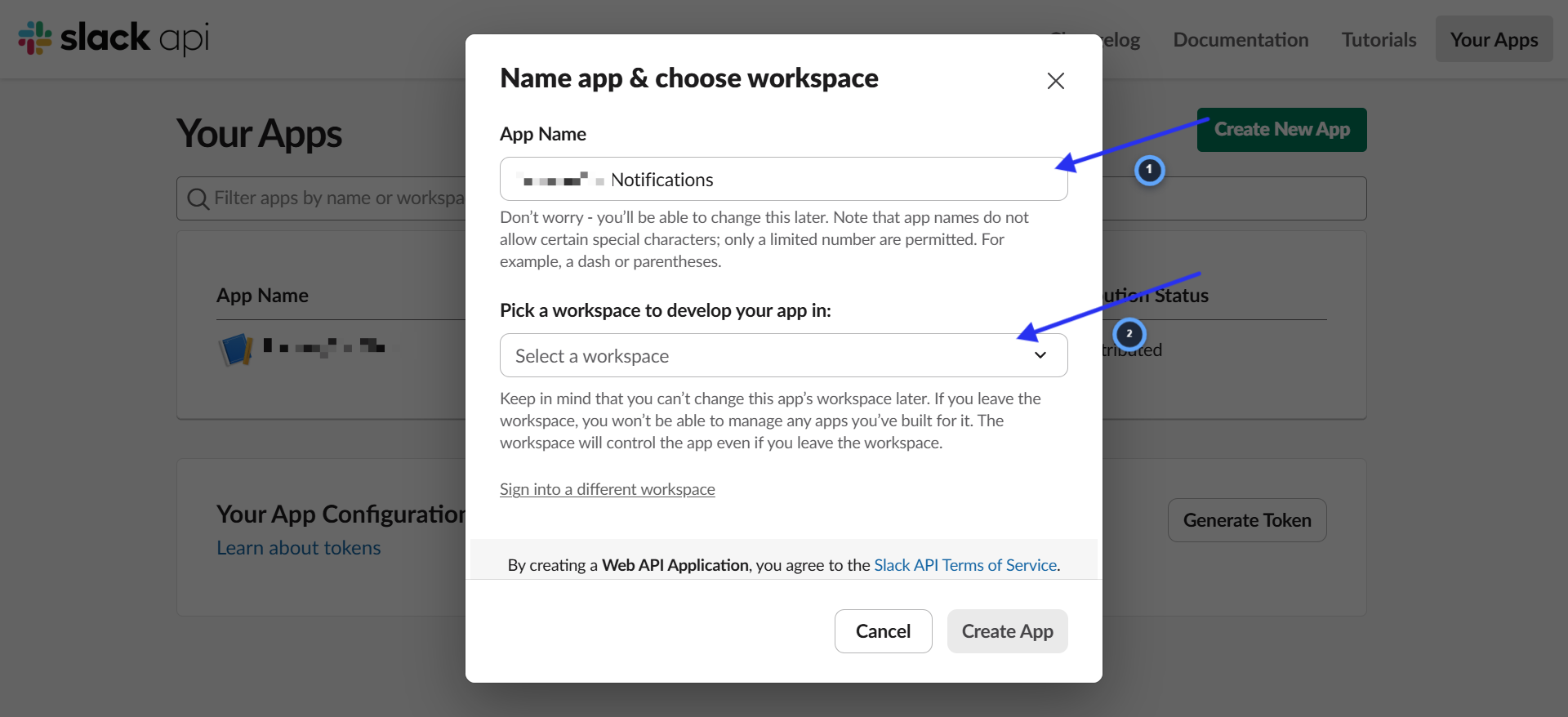
- 1.Enter App Name: "RunwayCal Alerts"
- 2.Under "Pick a workspace to develop your app in," select your company's Slack workspace
- 3.Click "Create App"
Enable incoming webhooks
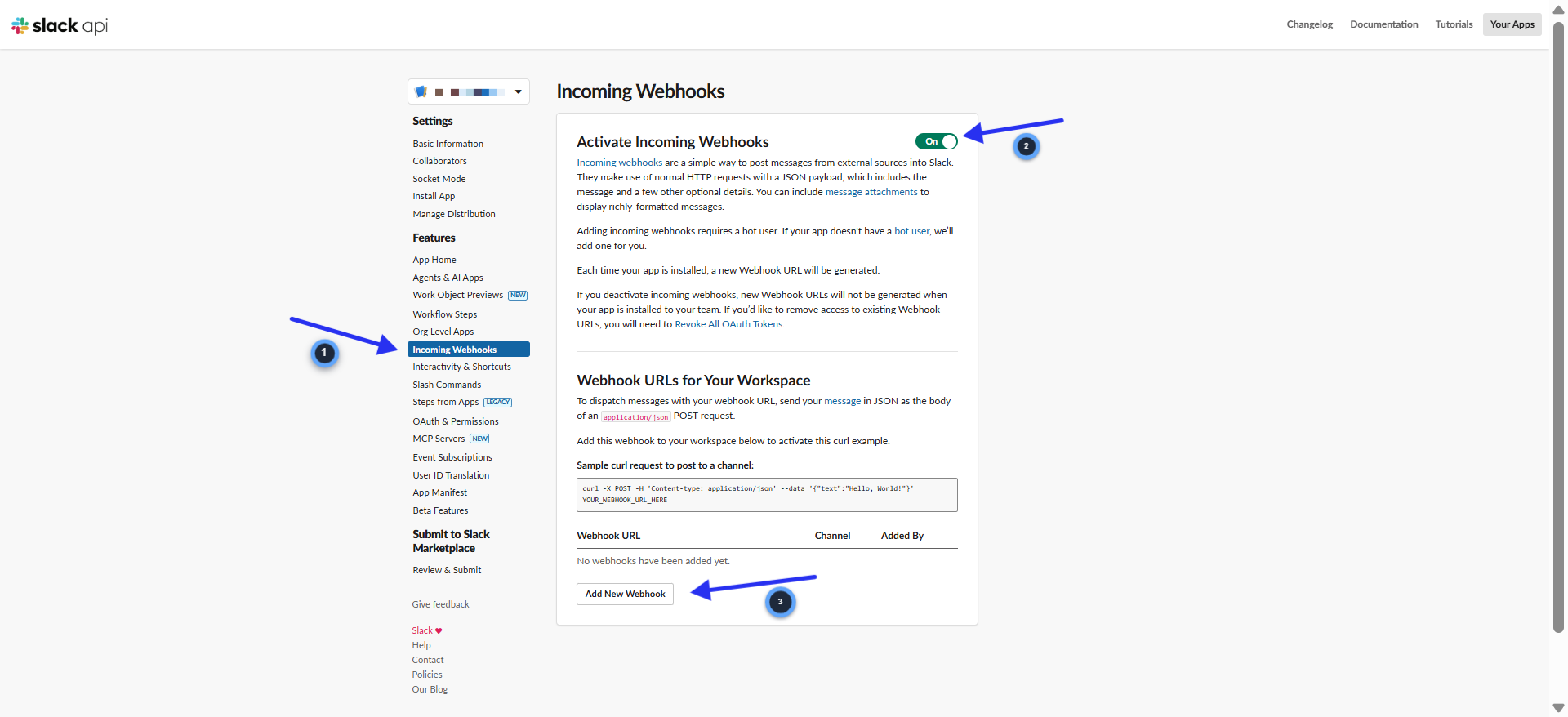
- 1.In the left sidebar, click "Incoming Webhooks"
- 2.Toggle "Activate Incoming Webhooks" to On (it will turn green)
- 3.Scroll down and click "Add New Webhook to Workspace"
Choose a channel
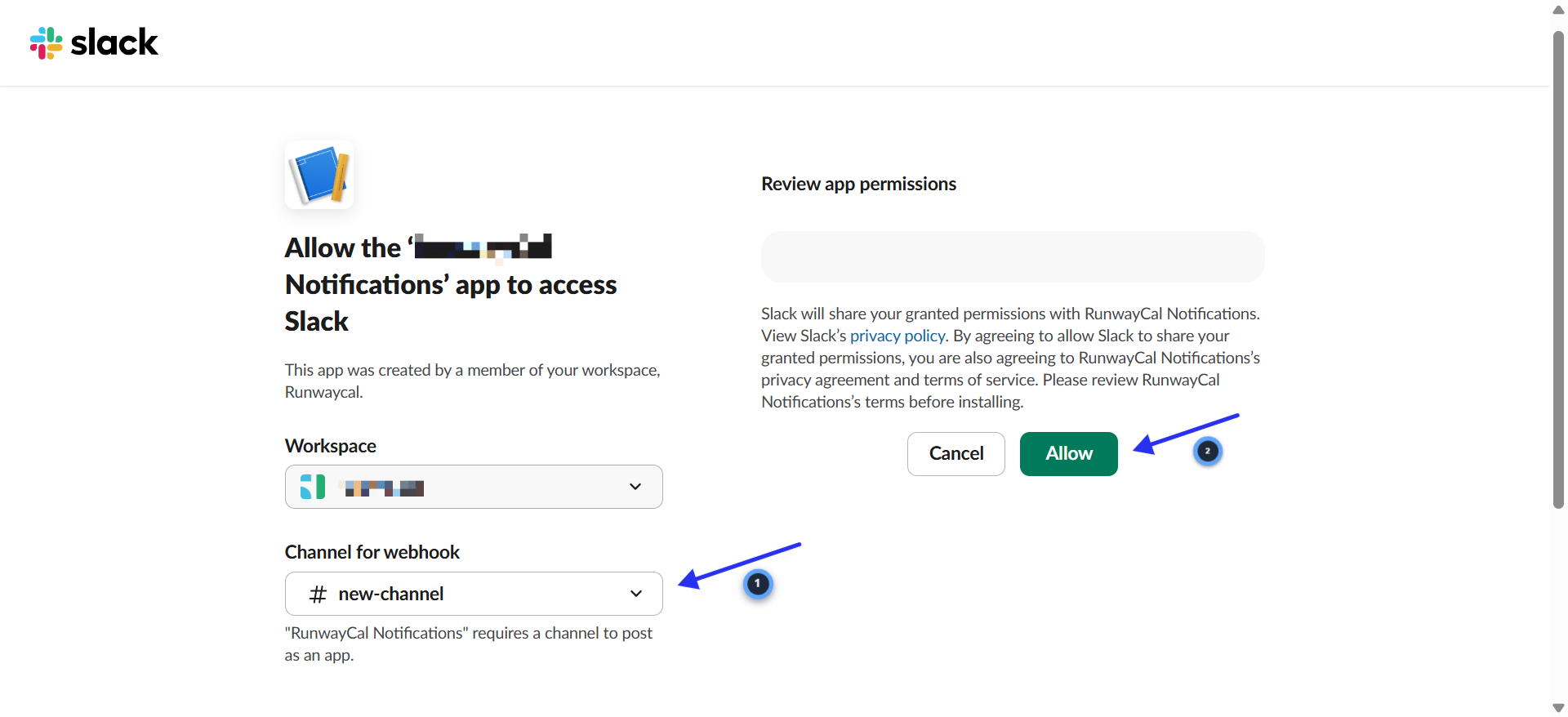
- 1.Your Slack workspace will be shown at the top
- 2.Under "Where should RunwayCal Alerts post to?", select the channel where you want alerts (e.g. #finance, #platform-alerts, or any channel)
- 3.Click "Allow"
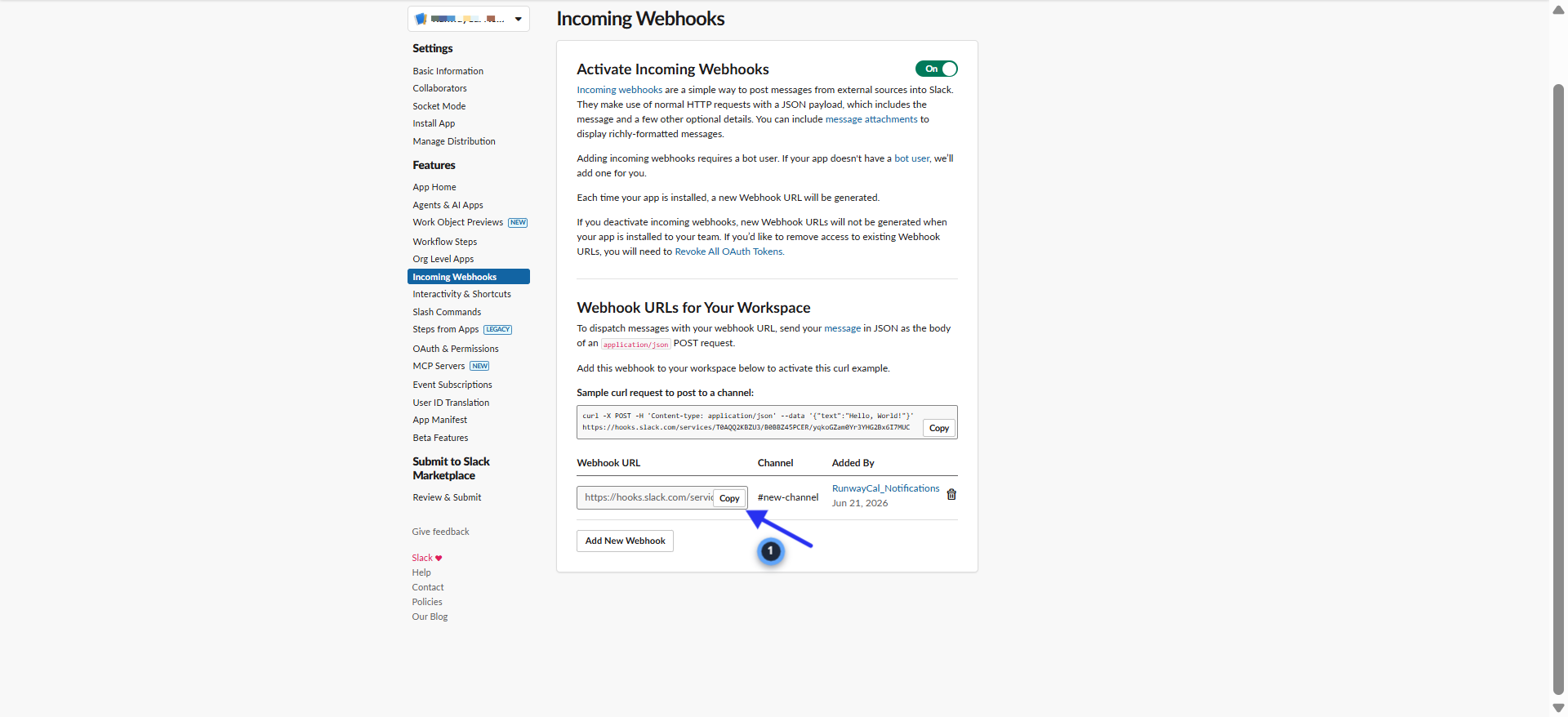
Copy the webhook URL
- 1.You will be redirected back to the Incoming Webhooks page
- 2.Your new webhook URL appears at the bottom under "Webhook URLs for Your Workspace"
- 3.Click "Copy" next to the URL (starts with https://hooks.slack.com/services/...)
- 4.Keep this URL safe. You will paste it into RunwayCal.
Add it to RunwayCal
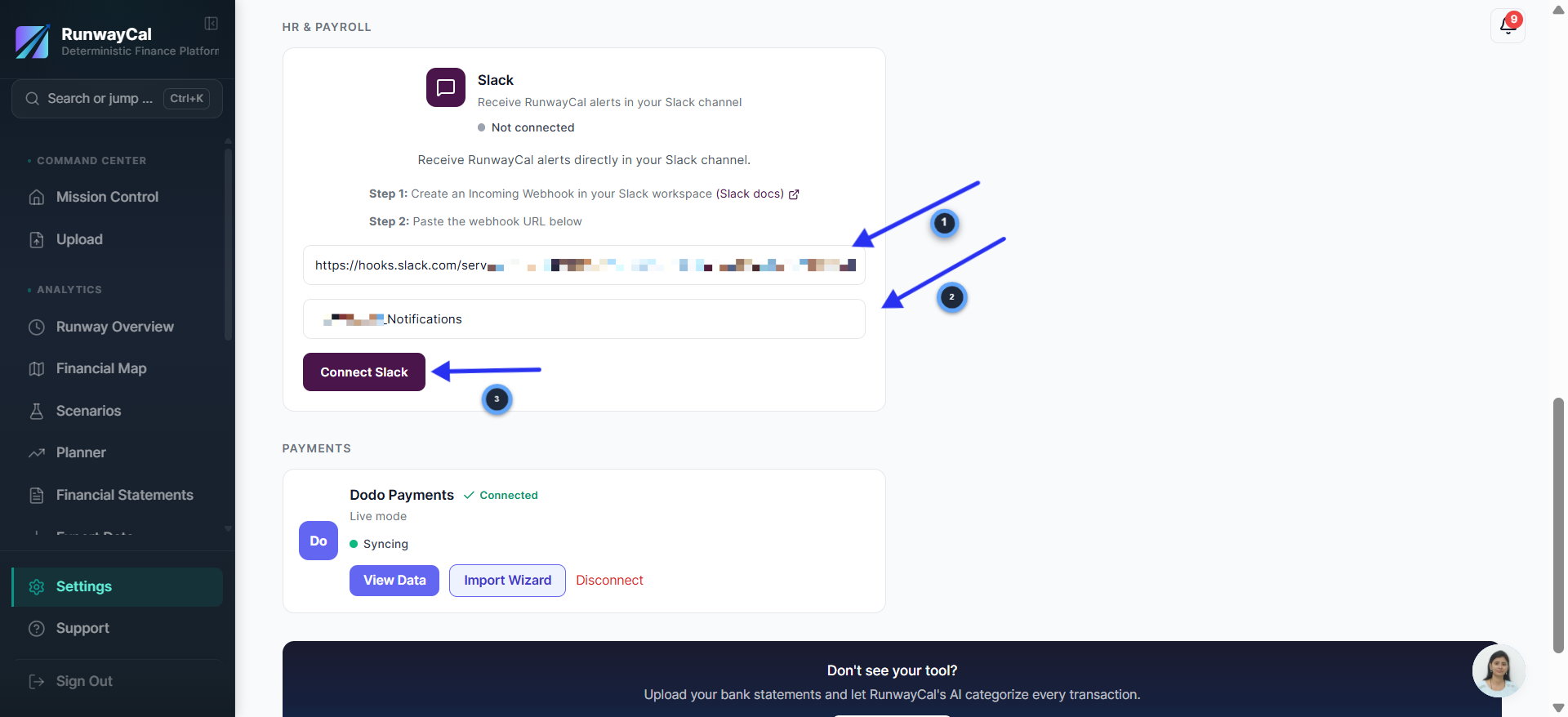
- 1.In RunwayCal, go to Settings then Integrations tab
- 2.Scroll down to the Slack card under "HR & Payroll"
- 3.Paste the webhook URL into the URL field
- 4.Optionally enter a channel name (e.g. #finance) for display purposes
- 5.Click "Connect Slack"
Send a test notification
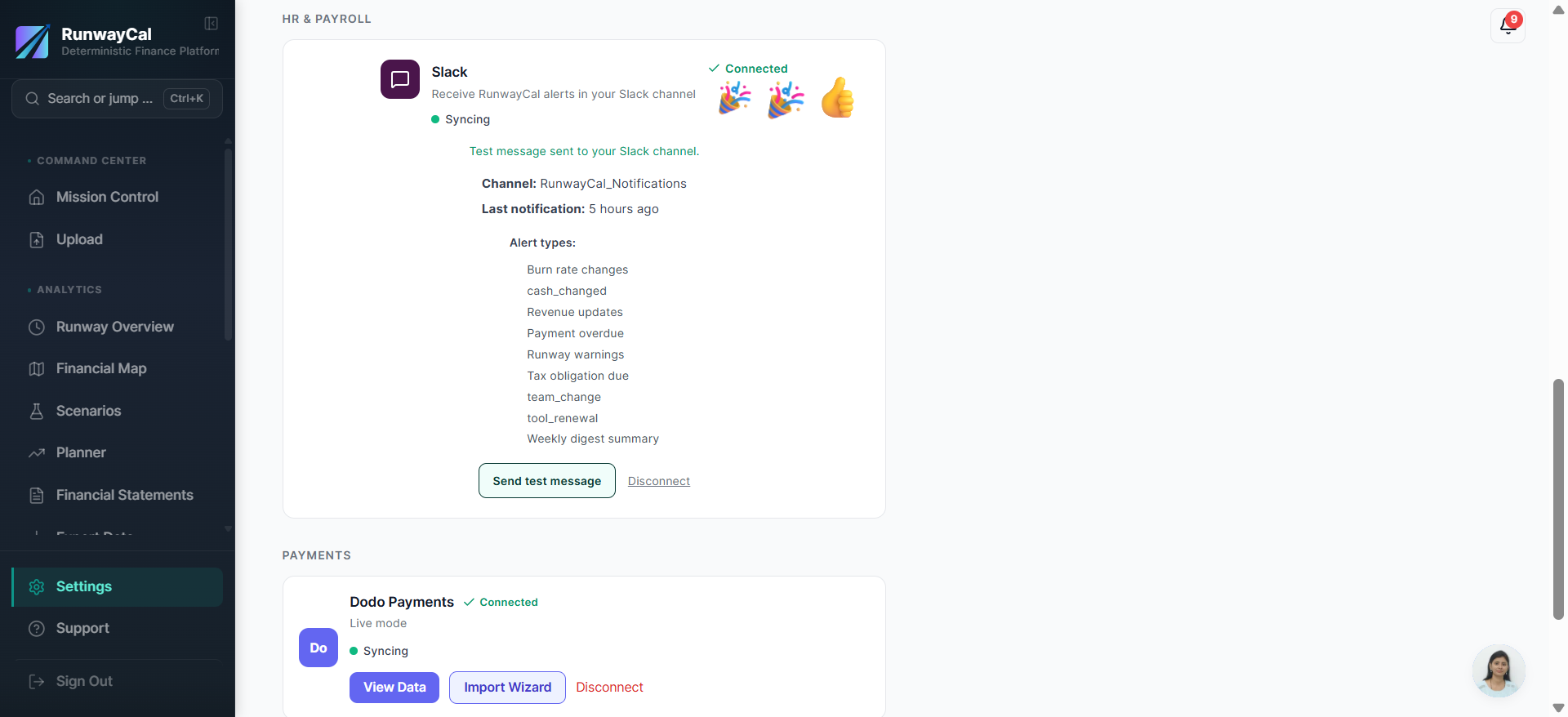
- 1.The Slack card should show a green "Connected" badge
- 2.Click "Send test message" to confirm alerts arrive in your Slack channel
- 3.You should see a RunwayCal test message appear in your selected channel within seconds
What you'll see after connecting
The Slack card shows a connected state. Click "Send test message" to confirm the webhook, then use the available notification preferences to control supported alerts.
Troubleshooting
No messages appearing
Check that you selected the correct channel when creating the webhook. Also verify the webhook URL starts with https://hooks.slack.com/services/.
Connection failed
The webhook URL may have been revoked. Create a new one in Slack and update it in RunwayCal.
Too many alerts
Review the available Slack notification preferences in RunwayCal and disable alerts that are not useful for the channel.
Set up Slack in RunwayCal.
Connect a channel and choose the notifications your team should receive.