

Setup guide
PayPal
Payments
Review supported PayPal transactions before creating RunwayCal receipts.
What it does
Connect PayPal to inspect supported balance and transaction data. Completed transactions can be reviewed before RunwayCal creates a receipt or a deal-and-receipt pair. RunwayCal does not write back to PayPal.
Prerequisites
- A PayPal Business account
- Permission to authorize the PayPal Business account
Step-by-step setup
1
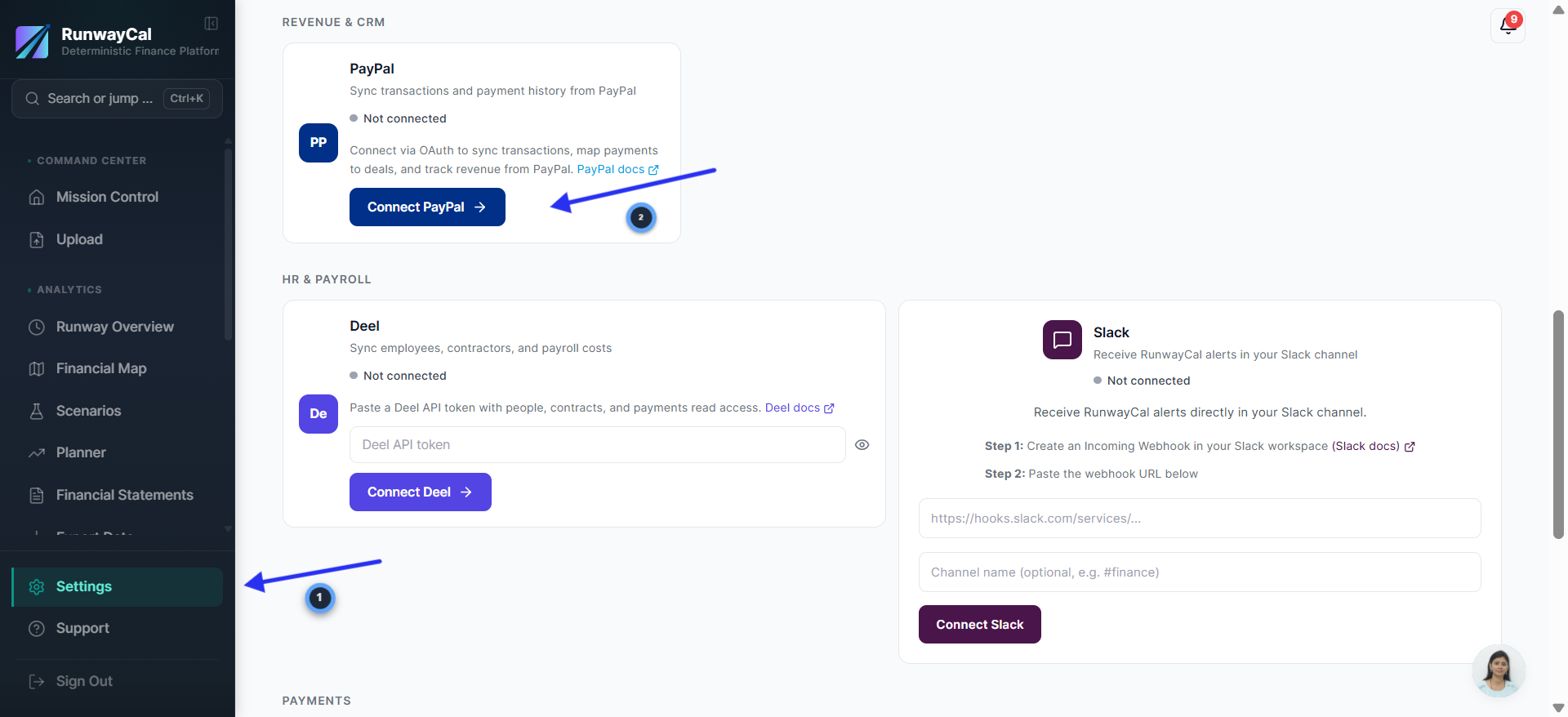
Go to Settings and click Connect PayPal
- 1.In RunwayCal, click "Settings" in the left sidebar
- 2.Click the "Integrations" tab at the top
- 3.Scroll down to the "Revenue & CRM" section in RunwayCal Settings
- 4.Find the PayPal card and click "Connect PayPal"
2
Log in to your PayPal account
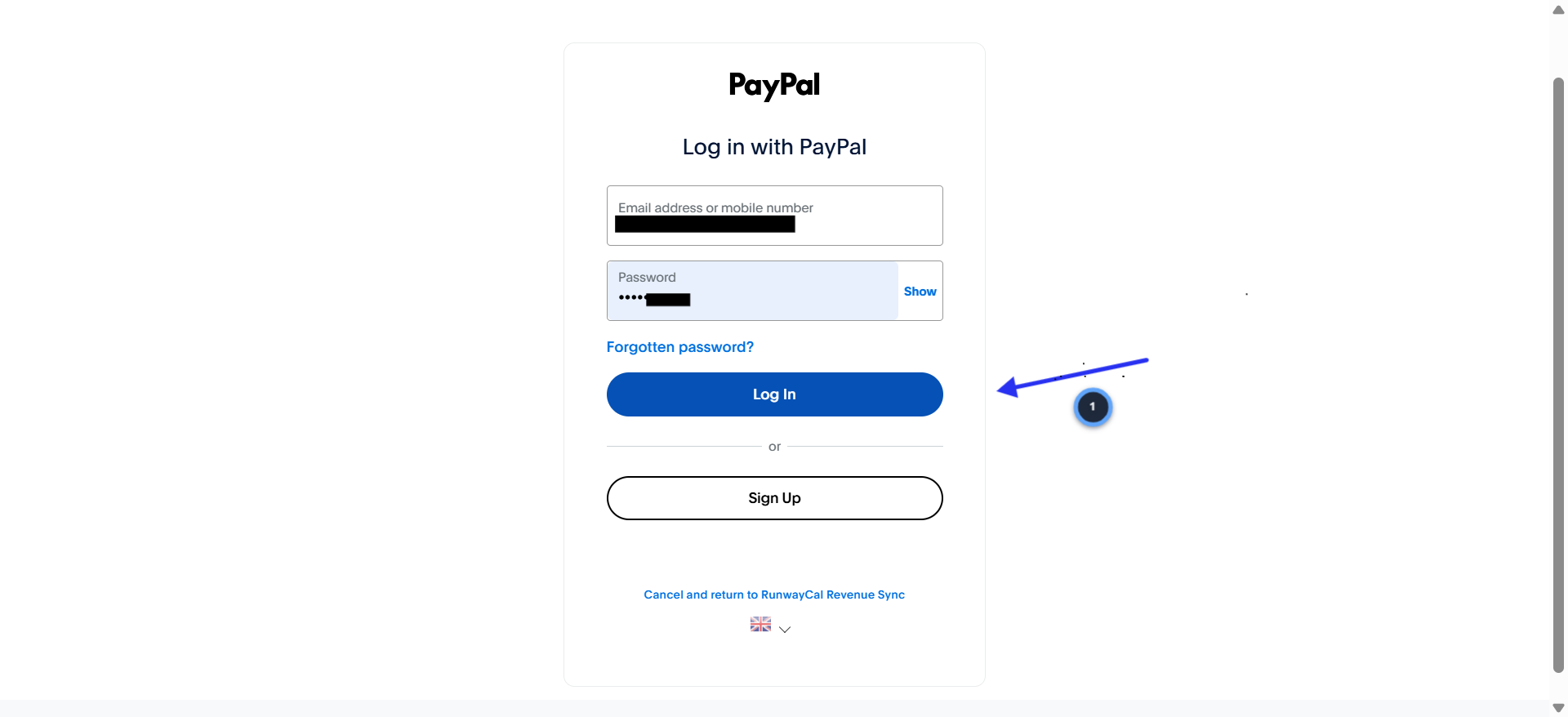
- 1.You will be redirected to PayPal's login page
- 2.Enter your PayPal Business account email and password
- 3.Click "Log In"
- 4.Note: you will see "Cancel and return to RunwayCal Revenue Sync" at the bottom, confirming you are connecting to RunwayCal
3
Agree to connect your PayPal account
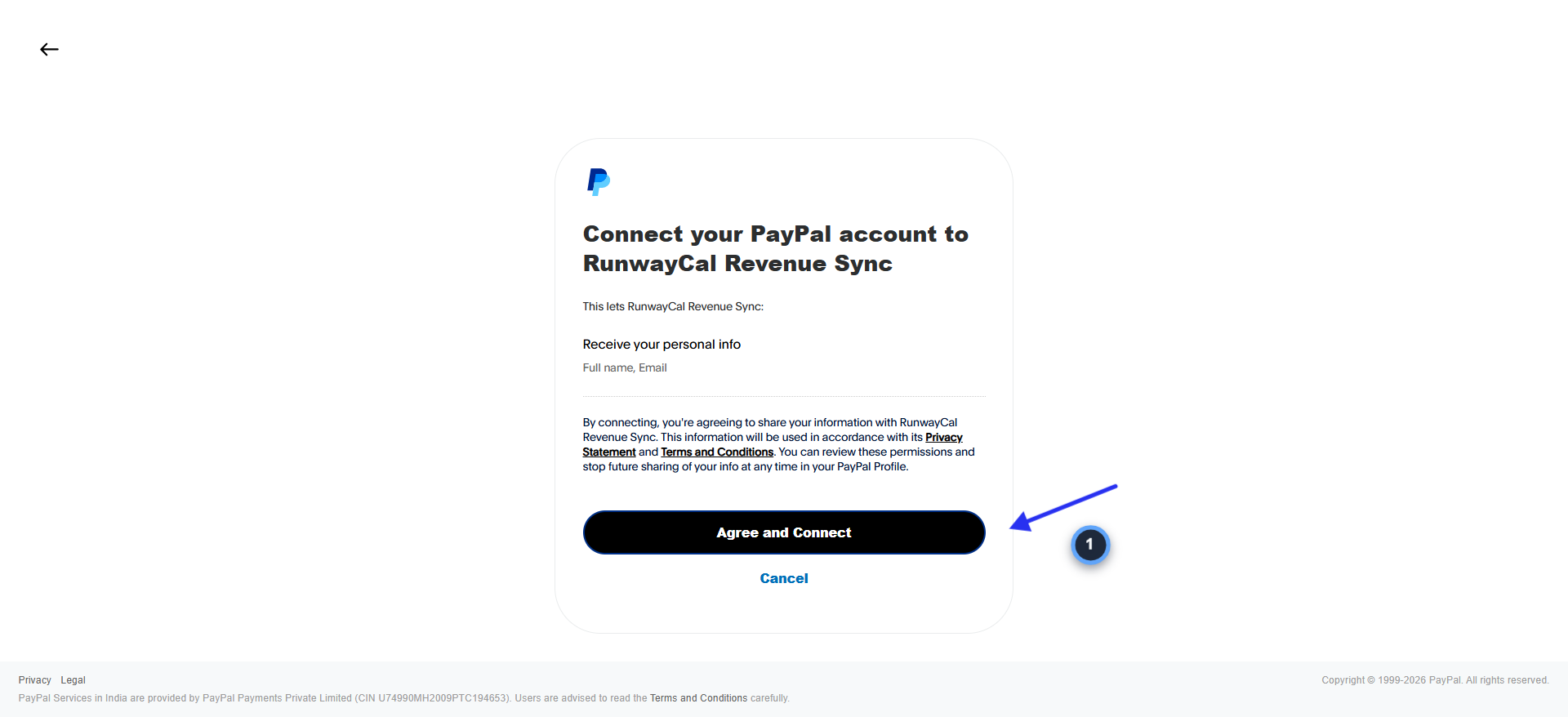
- 1.PayPal shows what RunwayCal Revenue Sync will access: your full name and email
- 2.Review the permissions and privacy statement
- 3.Click "Agree and Connect"
4
Verify connection in RunwayCal
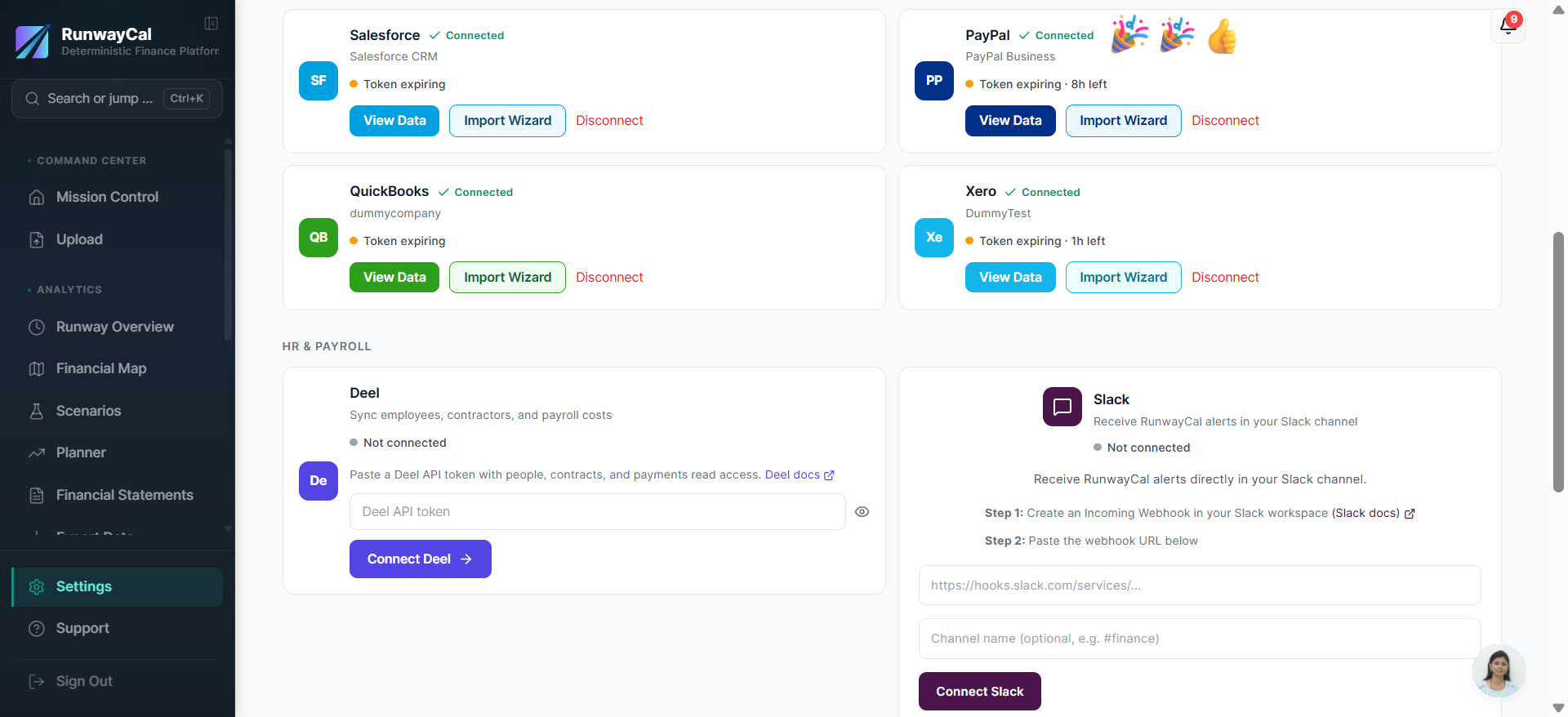
- 1.You will be redirected back to RunwayCal
- 2.The PayPal card should show a green "Connected" badge
- 3."PayPal Business" will appear below the badge
- 4.You may see an amber "Token expiring" indicator with time remaining. This is normal. RunwayCal auto-refreshes your PayPal token.
What you'll see after connecting
The PayPal card shows a green "Connected" badge. Use "View Data" to refresh supported transactions and approve or dismiss each suggestion.
Available connection data
| Data | Description |
|---|---|
| Transactions | Payment amounts, dates, fees |
| Payer info | Customer names and emails |
| Payment status | Completed, pending, refunded |
Troubleshooting
Connection failed
Try clearing your browser cookies for paypal.com and reconnecting. Ensure you're using a Business account, not a Personal account.
Token expiring
Normal. RunwayCal auto-refreshes your PayPal connection.
No transaction data
Make sure your PayPal account has transaction history. New accounts with no transactions will connect successfully but show no data.